
Why Did My International Call Fail? Top Reasons and Fixes
Reading time: 6 minutes
Published: February 21, 2026
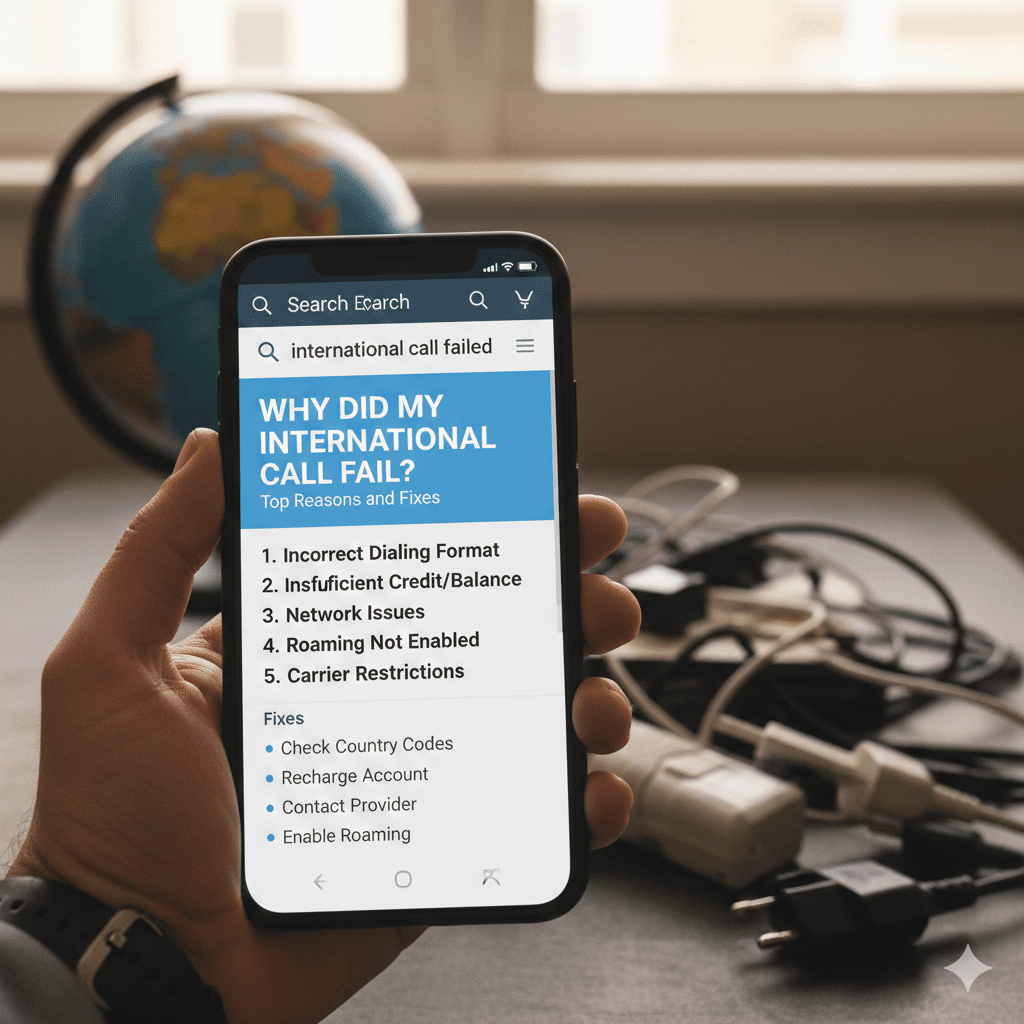
International calls failing is frustrating — especially when you need to reach someone urgently. The good news? Most issues have quick, simple fixes.
This guide covers the top reasons calls fail (on MyLine and other VoIP services) and step-by-step solutions so you can get back to talking fast.
Top 10 Reasons International Calls Fail (and Fixes)
1. No or Poor Internet Connection
Most common cause — VoIP calls need stable internet.
Fixes:
- Switch to strong Wi-Fi (avoid public/hotspot if possible)
- Move closer to router or use 5G if mobile data
- Try offline mode: Use local access number instead (see related article)
- Test speed: Need at least 100–200 kbps upload/download for voice
2. Low or Zero Balance/Credit
Calls stop when balance reaches zero.
Fixes:
- Check balance in app → Wallet
- Add credit (minimum $5 recommended)
- Enable auto-recharge to prevent interruptions
3. Wrong Number Format / Country Code Missing
Many failures happen because country code (+1, +44, etc.) is forgotten.
Fixes:
- Always include + and country code (e.g., +1 555 123 4567)
- Use contacts saved in MyLine — it auto-formats
4. Recipient's Number Blocked or Invalid
Some countries block VoIP, or number is wrong/disconnected.
Fixes:
- Try calling a different number to test
- Ask recipient to call you back (test incoming)
- Check MyLine status page or support for country restrictions
5. Firewall, VPN, or Network Restrictions
Corporate/school Wi-Fi, VPNs, or carrier blocks can stop VoIP.
Fixes:
- Disable VPN temporarily
- Switch to mobile data or different Wi-Fi
- MyLine uses ports 5060/5061 — ask IT to allow if needed
6. App Permissions Not Granted
Microphone/camera blocked on Android/iOS.
Fixes:
- Go to phone Settings → Apps → MyLine → Permissions → Enable Microphone (and Camera for video)
- Restart app after granting
7. Outdated App Version
Bugs in old versions cause failures.
Fixes:
- Update MyLine in Google Play Store / App Store
- Restart phone after update
8. Temporary Server or Carrier Issue
Rare, but MyLine or your carrier may have brief outages.
Fixes:
- Wait 5–10 minutes and retry
- Check MyLine status page (in app or website)
- Contact support via in-app chat
9. Echo, Delay, or One-Way Audio
Feels like "failed" due to poor quality.
Fixes:
- Switch to Wi-Fi (better than mobile data)
- Use headset/earphones to reduce echo
- Enable "Data Saver" mode in settings for lower bandwidth
10. Recipient's Phone Off or Do Not Disturb
Common but often overlooked.
Fixes:
- Send a text first to confirm
- Try calling again later
Quick Fix Checklist
- Check internet strength → switch to Wi-Fi if possible
- Verify balance → add credit if low
- Double-check number format (+country code)
- Restart app/phone
- Try offline mode with local access number
- Contact MyLine support (in-app chat) — usually resolves in minutes
Most call failures are fixed in under 2 minutes with these steps. You're back to talking soon!
Call fails happen — but fixes are fast.
About MyLine
