
How to Install and Set Up MyLine on iPhone (iOS)
Reading time: 5 minutes
Published: February 15, 2026
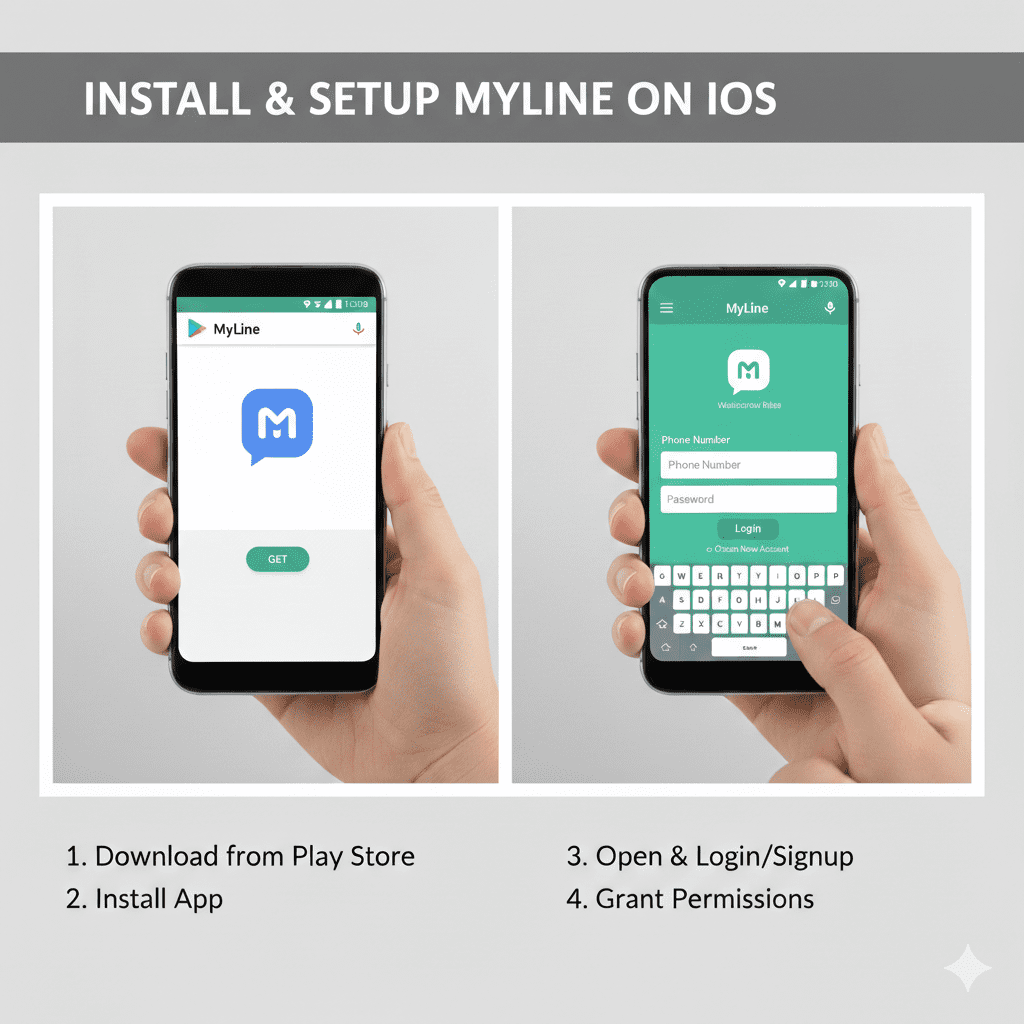
Installing and setting up MyLine on your iPhone or iPad is quick and straightforward — even if you're not very tech-savvy. In just a few minutes, you'll be ready to make affordable international calls with great sound quality.
This guide walks you through every step clearly. Let's get started!
Step 1: Download the MyLine App
- Open the App Store on your iPhone or iPad.
- In the search bar at the bottom, type MyLine.
- Look for the official app by MyLine (blue icon with white phone symbol).
- Tap Get (or the cloud icon if previously downloaded), then authenticate with Face ID, Touch ID, or your Apple ID password.
- Wait for it to download and install (usually takes 10–30 seconds depending on your connection).
After installation, the MyLine app icon will appear on your home screen.
Step 2: Open the App and Sign Up
- Tap the MyLine icon to open the app.
- On the welcome screen, tap Sign Up (or "Get Started").
- Enter your phone number (include your country code, e.g., +880 for Bangladesh).
- Tap Continue — you'll receive a 6-digit verification code via SMS.
- Enter the code when prompted (iOS often auto-fills it from your messages).
Step 3: Create Your Account
- Choose a strong password (at least 8 characters, mix of letters and numbers).
- Confirm the password by typing it again.
- Tap Create Account or Finish Setup.
- Allow permissions when asked (microphone for calls, contacts if you want easy dialing).
Step 4: Add Credit to Make Calls
- Tap the wallet or balance icon (usually at the bottom or in the menu).
- Select an amount to add (start with $5 or $10 to test).
- Choose your payment method (Apple Pay, credit/debit card, etc.).
- Authenticate with Face ID or Touch ID to complete the payment.
- Once successful, your balance will update — you're ready to call!
MyLine charges very low rates (often 1–5¢ per minute) to most countries — much cheaper than regular international calls.
Step 5: Make Your First Call
- Tap the Call or Dial tab.
- Enter the number you want to call (include the country code, e.g., +1 for USA).
- Or tap Contacts to select someone from your phone book.
- Tap the green phone icon to start the call.
You're All Set!
Congratulations! You've installed and set up MyLine on iOS. Now you can enjoy clear, affordable international calls from anywhere with internet (Wi-Fi or mobile data).
Next time you want to call family abroad, just open MyLine and dial — no codes, no hassle.
Happy calling!
About MyLine
