
How to Troubleshoot Bad Call Quality in Seconds (VoIP & App Calls 2026)
Reading time: 6 minutes
Published: January 28, 2026
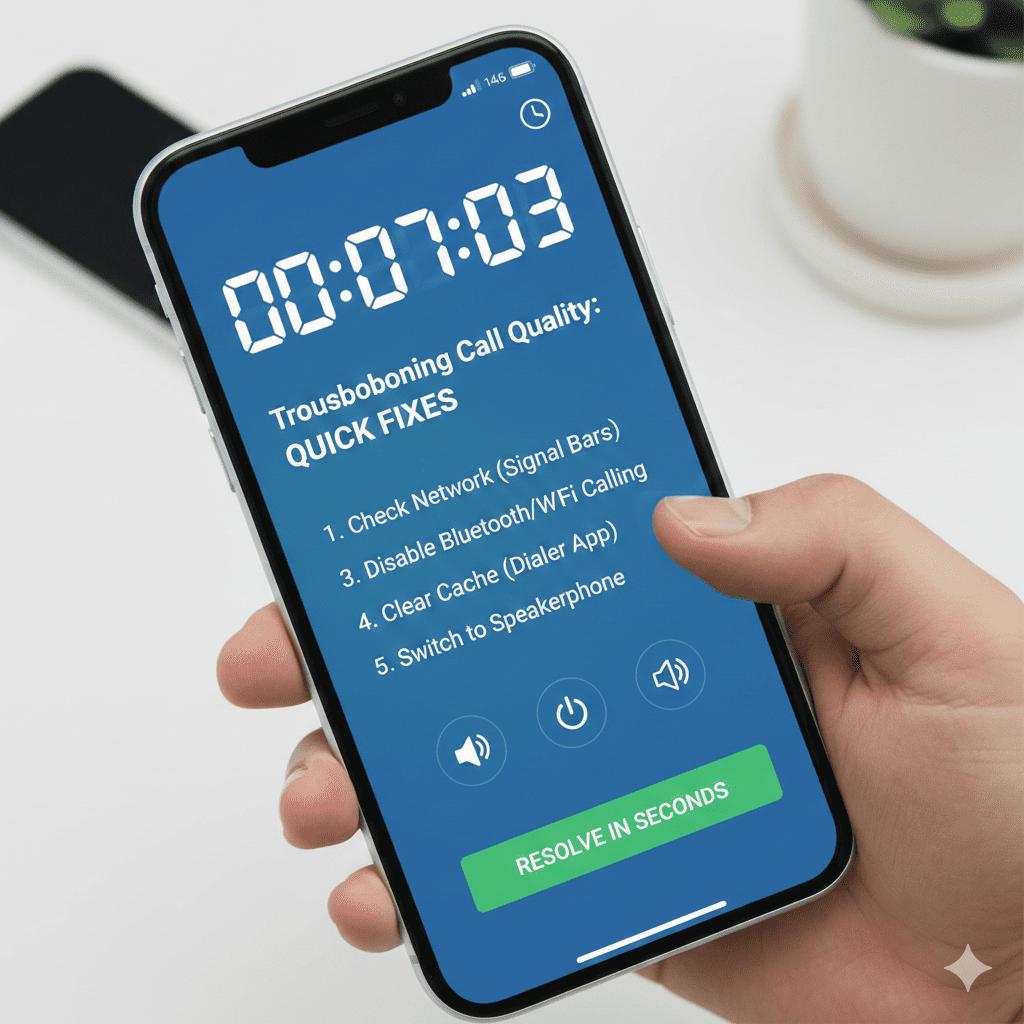
Nothing kills a conversation faster than choppy audio, robotic voice, echo, lag, or sudden drops — whether you're on MyLine, WhatsApp, Telegram, Signal, or any VoIP/messaging app. The good news? 80–90% of bad call quality issues can be fixed in **under 60 seconds** with the right quick checks.
This guide gives you the fastest, most effective troubleshooting steps in exact order — try them one by one during a bad call or right after. Most travelers, expats, and remote workers solve their issues before hanging up.
Quick-Fix Checklist: Try These in 10–60 Seconds
- Switch to mobile data or a different Wi-Fi (10 sec)
Weak, congested, or VoIP-blocked Wi-Fi is the #1 cause worldwide. Tap airplane mode on/off or switch networks — quality often jumps instantly. - Turn off speakerphone & use earphones/headset (15 sec)
Speakerphone creates echo/feedback loops. Wired earbuds or Bluetooth headset (with mic) almost always fix echo and improve clarity dramatically. - Close background apps & stop downloads/streaming (20 sec)
YouTube, Netflix, cloud backups, or other devices hog bandwidth → choppy audio. Force-close apps or pause downloads on all devices on the same network. - Toggle video off (if on video call) (5 sec)
Video eats 5–10× more data than voice. Switching to audio-only often restores perfect voice quality immediately on slow connections. - Reconnect the call (10 sec)
Hang up and redial — VoIP apps often pick a better server/route on reconnect. Works surprisingly well for lag/jitter.
While on a bad call, say: “Give me 20 seconds to fix this.” Then quickly try #1–3 above. Most people notice huge improvement before you even explain.
Common Causes & Ultra-Fast Fixes
- Choppy / Robotic Audio: Low bandwidth or packet loss.
Fix: Switch network or close apps (steps 1 & 3). - Echo / Feedback: Speakerphone or high volume loop.
Fix: Use headset + lower volume (step 2). - Lag / Delay: High latency or jitter.
Fix: Reconnect call or switch to mobile data (steps 1 & 5). - Drops / Freezes: Unstable connection.
Fix: Toggle airplane mode or restart app. - One-Way Audio: NAT/firewall issue.
Fix: Reconnect or switch networks — often resolves itself.
MyLine-Specific Quick Wins
If you're using MyLine:
- Enable “HD Voice” in settings (if available) when on strong connection.
- Switch to eSIM data instead of hotel Wi-Fi — MyLine's carrier-grade routing bypasses many public Wi-Fi blocks.
- Use “Low Data Mode” temporarily if bandwidth is very low.
For WhatsApp/Telegram/Signal: Disable “Save Data” mode in app settings during calls — it often sacrifices quality too aggressively.
Most Calls Improve in Under a Minute
Next time your call sounds terrible, don't suffer through it — run through these 5 quick steps in order. In 2026, bad call quality is rarely permanent; it's almost always a temporary network glitch you can fix yourself in seconds.
Master these, and you'll spend less time frustrated and more time actually talking — whether across the city or across the world.
Quick fix checklist saved — bad calls fixed forever.
About the Author
